WORKFLOW GUIDE · EMBEDDED LEAD CAPTURE
Keep your website. Give project inquiries a better first step.
For a local electrician, pool builder, or remodeler who already has a website and wants to collect useful job context there. BidOtter publishes a hosted form and a responsive iframe snippet; your team chooses which entry point fits the site.
A GENERATOR-INSTALL EXAMPLE
Ask for the context that changes the first site visit.
A residential electrician adding standby-generator work could put a focused inquiry form on the generator-install page. It might ask for a ZIP code, whether the homeowner is considering whole-home or partial backup, the desired timing, and what equipment is already at the property.
BidOtter forms support required and optional fields, choice lists, and conditional questions that appear when a configured answer calls for them. The homeowner sees the published questions, then submits the answers to a saved inquiry with that form’s version attached.
PUBLISH IN THREE STEPS
Copy the snippet from the form you actually published.
- Build the form.Add company details, services, and the questions that help your team understand a job. Publish validation checks that a contact field and a useful qualification prompt are present.
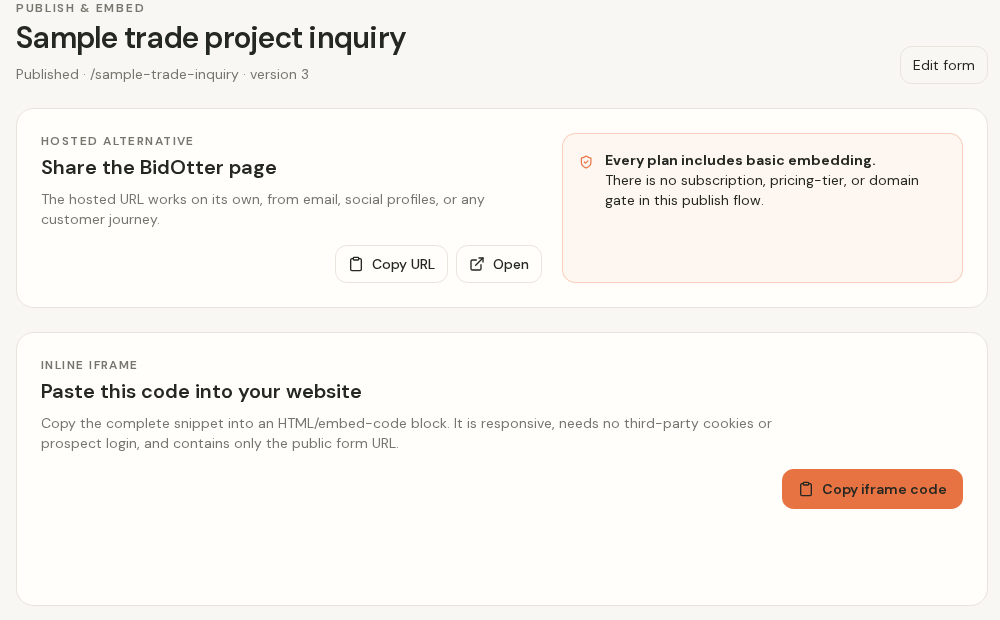
- Choose where it lives.Use the hosted URL as a standalone destination, or copy the complete responsive iframe from Publish & embed.
- Place it in a site editor.Paste the full snippet into an HTML or embed-code block without rewriting its source. Preview at desktop and narrow mobile widths, then submit a test inquiry.
A PRACTICAL NEXT STEP
Publish one form and test the customer path.
Start with the service page customers already use. Test both the hosted link and the iframe on a narrow screen before sharing the page publicly.